Installing and configuring Sql server 2005
Installing sql server 2005
1. enterprise edition:
No processor and memory limits, more processors in the server means more memory24/7 environment and minimal downtime. It supports high availability features like online indexing operations, parallel index operations, failover clustering, database mirroring
And online indexing and parallel index operations are not supported in the standard edition and Enterprise and standard editions supports 64 bit architecture
2. Standard edition:
4 processors and no memory limits , in previous version high availability features like failover clustering and database mirroring is not there and afterwards Microsoft decides to gives the failover clustering and database mirroring. So that MS gives more features for your money
And online indexing and parallel index operations are not supported in the standard edition and for these features we need to go for enterprise edition
Differences:
1. Standard edition is also same as enterprise edition but enterprise edition will provide the extra feuatures.
2. SQL Server Reporting Services (SSRS) is available in both Standard and Enterprise editions of SQL Server. However, Enterprise edition offers substantially more BI features, such as parallel processing, cube partitioning, and text mining.
3. Enterprise is the only edition that allows you to replicate data from Oracle.
4. SQL Server Standard is significantly less expensive than Enterprise when licensed per cp
5. If you need your systems should have a high-availability, mission-critical environment.
6 . If you are working with large volumes of data
3. Work group editions:
It does not supports high availability and business intelligence features and supports 64 bit architecture
4. Express edition: its free and for learning
Developer edition: its same as enterprise edition but not licensed for production
And it is used only for development and testing
5. Mobile edition:
It supports the mobile device and smart devices stores the information in sql server mobile edition
Installer enhancements:
1. Windows installer:
Like Microsoft office, we can choose the peaces(Components) you want to install in the sql server
Like DB engine, sql server integration services , sql server reporting services,sql server analasis services. We can install what you need
2. Improved error logging: each component has separate error log. If there is any issue , so it will give the error information related to that component. Its nice enhancement introduced
3. System configuration checker:
It will check the entire machine and gives the result that machine has the required components to install the sql server
4. Remote installation is simplified here
Upgrading the Engine:
Sql server 2000 and service pack 3 is there in the server then it will be upgraded to sql server 2005
If sql server 7.o and service pack 4 is there in the server, then it will be upgraded to sql server 2005
If sql server 6.5 installed in the server, then upgrade to sql 7.o version and then upgrade to sql server 2005
Sql server upgrade advisor:
Microsoft provides the SQL Server 2008 Upgrade Advisor (SSUA) to help you detect upgrade issues before they occur. This tool examines your SQL Server 2000 and SQL Server 2005 databases and checks for any potential conflicts. I strongly recommend using this tool in advance of any attempted upgrade.
Difficulty: Average
Time Required: One hour
Down time is decreased due to this
Upgrading the components:
Analysis services:
Analysis service migration wizard is there for up gradation of 2000 packages to 2005 packages
Integration services:
Package migration wizard: in 2000 DTS packages are there and these are converted to ssis packages with this wizard.
Reporting services:
In this report server migration: it is clearly explained in Books online
Reports migration: deploy the reports of sql server 2000 to sql server 2005 report server and 2005 server recognizes the reports and converts to the 2005 format.
We cannot convert back to sql server 2000 reports
Upgrade advise take all the components and analyzed and nice reports on the issues that are stopping the reports.
We have 2 cd’s and in the first CD have the below look
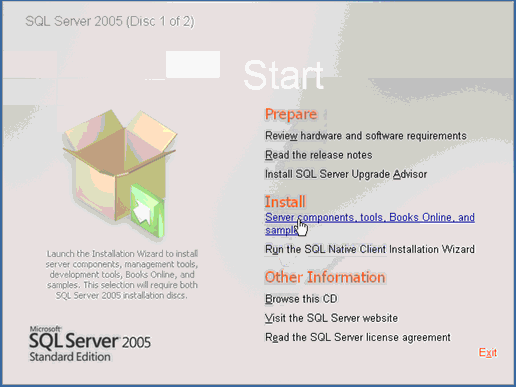
Run Sql server native wizard for the client components
Click on server components and it is used for installing sql server
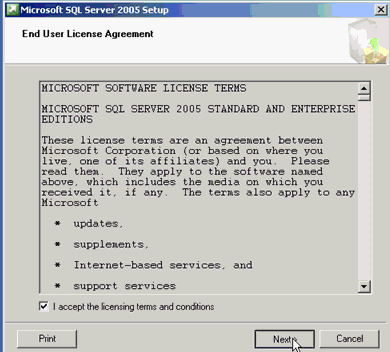
Click on next
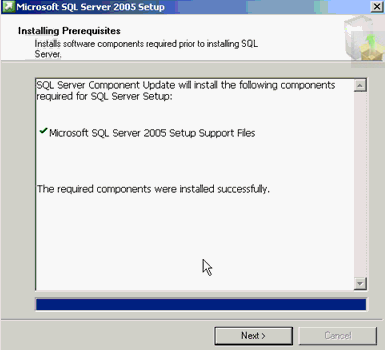
It will check and install the sql server 2005 pre requisites like .net framework
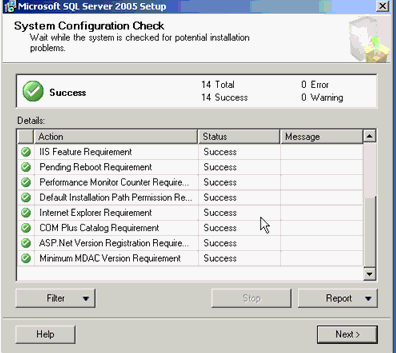
This check will perform the analyses and let us know if there is any problems are occurring during this installation and it gives the report of the analysis.
After click next and give the CD key and you got the below screen
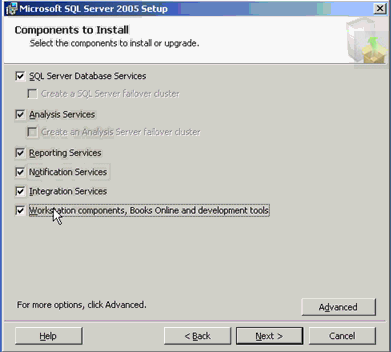
We can choose the components what we need to install in the sql server
If we click on advanced, you will get the what are the feuatures are installing with these components
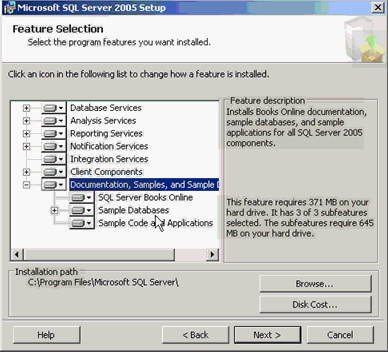
Click next

Default instance is it will take the name of the computer as the instance name
Named instance means we can give any name
I am selected the named instance with the name as below
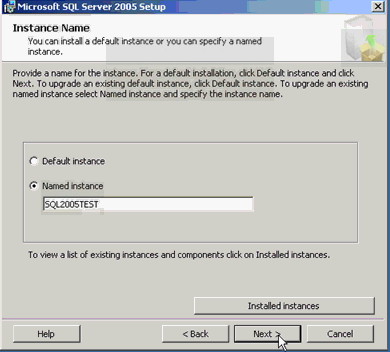
And we can view the installed instances on the machine by clicking installed instances options
We can install as many as instances in the machine and click next we got the below screen
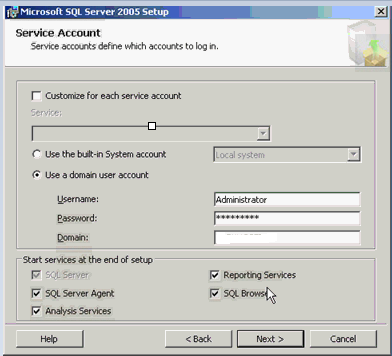
We can services like sql server,ssrs,ssis,ssas etc that needs to be run under some account
You can give the system account or user account
I am selecting the our own account
Click on next, and choose the authenctication mode
We have 2 authentication modes:
Windows and mixed authentication mode
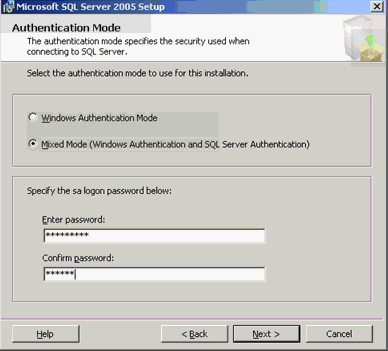
During setup, you must select an authentication mode for the Database Engine. There are two possible modes: Windows Authentication mode and mixed mode. Windows Authentication mode enables Windows Authentication and disables SQL Server Authentication. Mixed mode enables both Windows Authentication and SQL Server Authentication. Windows Authentication is always available and cannot be disabled.
 Configuring the Authentication Mode
If you select Mixed Mode Authentication during setup, you must provide and then confirm a strong password for the built-in SQL Server system administrator account named sa. The sa account connects by using SQL Server Authentication.
If you select Windows Authentication during setup, Setup creates the sa account for SQL Server Authentication but it is disabled. If you later change to Mixed Mode Authentication and you want to use the sa account, you must enable the account. Any Windows or SQL Server account can be configured as a system administrator. Because the sa account is well know and often targeted by malicious users, do not enable the sa account unless your application requires it. Never set a blank or weak password for the sa account. To change from Windows Authentication mode to Mixed Mode Authentication and use SQL Server Authentication,
Click on next, we got collation settings screen

Collation tells sql server how to sort the data and the how to interpret the character set
Because data from the different regions will come and sql server will check the data according to collation settings
2 types of collations, sql server and windows collation. Default sql server collations are there, we can change the collation to windows collation also.
To know the collation of the sql server instance
select serverproperty(‘collation’)
Result:SQL_Latin1_General_CP1_CI_AS
What this collation means
We have sql server built in function for displaying the collatin description
SELECT *
FROM fn_helpcollations() where name =’SQL_Latin1_General_CP1_CI_AS’
Latin1-General, case-insensitive, accent-sensitive, kanatype-insensitive, width-insensitive for Unicode Data, SQL Server Sort Order 52 on Code Page 1252 for non-Unicode Data
This collation is at server level
We have the collation for every database
To know the what databases uses what collation, use the below script
SELECT collation_name,name
FROM sys.Databases

In order to find the column level collations
SELECT name, collation_name
FROM sys.columns
WHERE OBJECT_ID IN (SELECT OBJECT_ID
FROM sys.objects
WHERE type = ‘U’)
But for analysis service collation used is windows collations.
Click on next, you will get the Reporting services configuration
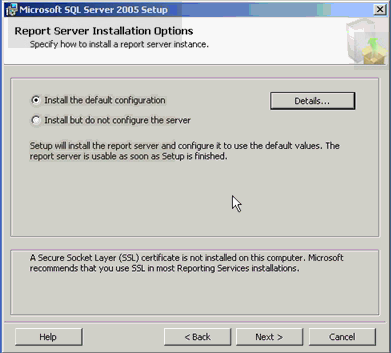
We can choose default configuration or customized configuration.i am choosing default one.
After,

We can send the error reports to Microsoft if there are any issues in the installation
Click next and we got below screen
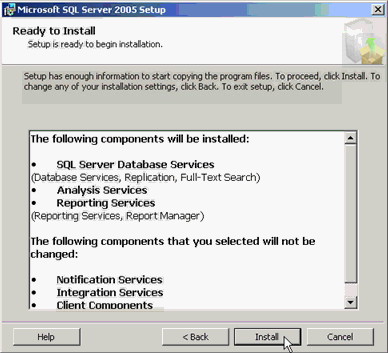
Click on install and after installation completed, we got the summary of the log and the component log
By clicking on the below link
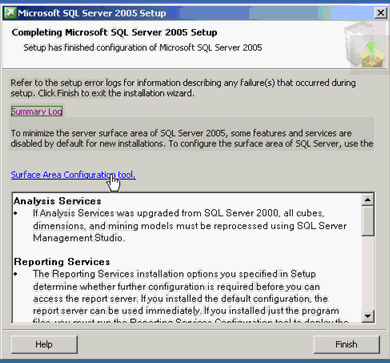
We can see these log files , in the below folder
C:Program FilesMicrosoft SQL Server90Setup BootstrapLog and you can see the summary of the log
And you can see the component log in the
C:Program FilesMicrosoft SQL Server100Setup BootstrapLogfiles directory
We can see the what we have installed in the sql server configuration manager
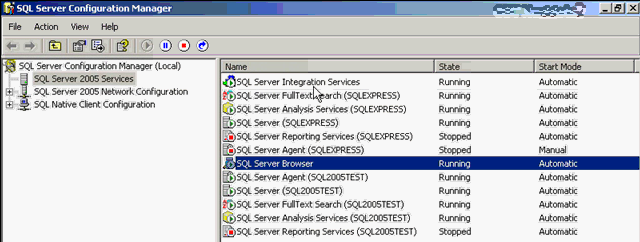
Integration services is not instance specific and sql browser also and other services are instance specific
We can see these services in services window
Go to run and type services. MSc and enter we can see the services.
If we go to services, we will see the properties of services by right clicking on the service
We explained this in the below post
http://mssqlbuzz.com/2011/10/05/sql-server-configuration-manager-tool-explanation/
Please check and let us know if you have any concerns on this.
Thanks for viewing
Regards,
Chaitanya
Visit site: https://mssqlbuzz.wordpress.com
Send an Email : mssqlbuzz


Good one….
LikeLike