Gacing .Net 2.0 DLLs using GACutil and PowerShell
Use the below snippet code to GAC .net 2.0 DLLs using Combination of GACutil and PowerShell.
$filepath=’D:\DLLS\’
$files=Get-ChildItem -Path $filepath -Recurse -filter *.dll
$gacUtilLocation = "D:\gacutil\gacutil.exe"; # give the GACutil exe Location
$files | foreach-object {
Write-Host “Adding” $_.FullName
$asm = [System.Reflection.Assembly]::LoadFile($_.FullName)
$command = “&`”{0}`”/nologo /i `”{1}`”” -f $gacUtilLocation,$_.FullName
invoke-expression $command
}
Regards,
Chaitanya
Identify .Net Framework Version of DLLs using PowerShell
Use the below snippet code to check the version of the DLLs.
$filepath=’D:\DLLS\’
$files=Get-ChildItem -Path $filepath -Recurse -filter *.dll
foreach($file in $files)
{
$version = [System.Reflection.Assembly]::ReflectionOnlyLoadFrom($file.FullName).ImageRuntimeVersion;
echo "$($file) is using Framework: $version"
}
Regards,
Chaitanya
Sql Server 2016 new Features.
In simple terms, below are the new features for Sql server 2016 for developers.
Ø DROP IF EXISTS (DIE)
Ø SESSION_CONTEXT
Ø Dynamic data masking(DDM)
Ø Row level security (RLS)
Ø Always encrypted
Ø Stretch database
Ø Temporal
Ø JSON
Ø Query Store
Ø PolyBase
Ø R integration
PowerShell formatting issue in Function or Workflow
Hi All,
If you see below error . you might be calling the format function in function or some workflow.
The object of type "Microsoft.PowerShell.Commands.Internal.Format.FormatStartData" is not
valid or not in the correct sequence. This is likely caused by a user-specified "format-list" command which is
conflicting with the default formatting
Wrong work flow code:
workflow parallelEventCheck {
param(
[String[]]$ComputerName,
[string]$EventMessage,
[string[]]$ApplicationList
)
foreach –parallel ($Appname in $ApplicationList)
{
inlinescript{
Get-EventLog -LogName $Using:Appname -Newest 10 -Message "*$Using:EventMessage*" |format-table # don’t use like this
}
}
}#parallelEventCheck
parallelEventCheck -PSComputerName `
Server1,Server2
-EventMessage Error `
-ApplicationList ‘Application’,’System’ |out-gridview
Correct work flow code:
workflow parallelEventCheck {
param(
[String[]]$ComputerName,
[string]$EventMessage,
[string[]]$ApplicationList
)
foreach –parallel ($Appname in $ApplicationList)
{
inlinescript{
Get-EventLog -LogName $Using:Appname -Newest 10 -Message "*$Using:EventMessage*"
}
}
}#parallelEventCheck
parallelEventCheck -PSComputerName `
Server1,Server2
-EventMessage Error `
-ApplicationList ‘Application’,’System’ |format-table # don’t use the format command in function . you can pipe the function output to format command.
Regards,
Chaitanya
Searching Event Viewer Logs on Multiple servers Parallelly
Often if any issue happens, then we have to check what happened to service by checking the event viewer logs.
We can check the event viewer log data by searching keywords using below command
Get-EventLog -LogName $Appname -Newest 10 -Message "*$EventMessage*"
You can do it in multiple servers using invoke-command
Invoke-command -computername server1,server2 -scriptblock{Get-EventLog -LogName $Appname -Newest 10 -Message "*$EventMessage*" }
It internally uses PowerShell remoting.
You can use the below method to search data . but it uses dcom protocol to connect and search data
Get-EventLog -ComputerName $Server -LogName $Appname | Where-Object { $_.Message -like "*$($EventMessage)*"}|select -First 10 *
What if we want to search servers parallelly.
workflow parallelEventCheck {
param(
[String[]]$ComputerName,
[string]$EventMessage,
[string[]]$ApplicationList
)
foreach –parallel ($Appname in $ApplicationList)
{
inlinescript{
Get-EventLog -LogName $Using:Appname -Newest 10 -Message "*$Using:EventMessage*"
}
}
}#parallelEventCheck
parallelEventCheck -PSComputerName `
Server1,Server2
-EventMessage Error `
-ApplicationList ‘Application’,’System’ |out-gridview
The DCOM will run 5 in parallel by default.
The WSMAN will run 32 in parallel by default.
Using DCOM Method:
workflow parallelEventCheck {
param(
[String[]]$ComputerName,
[string]$EventMessage,
[string[]]$ApplicationList
)
foreach –parallel ($CN in $ComputerName)
{
Write-Warning "Computer is $CN"
foreach –parallel ($Appname in $ApplicationList)
{
Write-Warning "AppName is $AppName"
InlineScript
{
Get-EventLog -LogName $Using:Appname -Newest 100 -Message "*$Using:EventMessage*" -CN $Using:CN |
Select MachineName,* -EA 0
}
}#ApplicationList
}#Computername
}#parallelEventCheck
parallelEventCheck -ComputerName Server1, Server2-EventMessage error -ApplicationList System
Regards,
Chaitanya
Conditional Formatting is not visible in Power report
Hi All,
I have this issue when trying to format some columns based on the values in that.
Below things needs to be fixed for this issue to be resolved.
1. Value must be decimal number /whole number upon which you want to apply formatting.
2. If you still do not they see the conditional formatting even if you followed step 1 means follow this step.
Right click on the value and you will see below window.
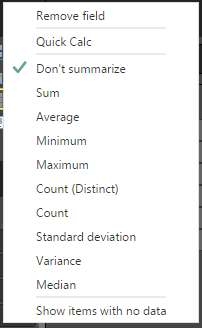
Select sum and again right click on that value, you could see conditional formatting

That’s it.
Regards,
Chaitanya
Bulk installing MSIs in a server Using Powershell
Hi All,
Below is the PowerShell code for Bulk installing MSIs in a server
$MSIArray=get-childitem -Path ‘D:\MSIs\’ -Recurse -Filter *.msi # Folder where your MSIs present.
$LogFilepath=”D:\MSIs\Logs’
if(!(Test-Path $LogFilepath))
{
New-Item -ItemType directory -Path $LogFilepath
}
foreach ( $MSI in $MSIArray)
{
$MSISourcePath=$MSI.fullname
$AppName=$MSI.BaseName
$AppLogFilepath=$LogFilepath+"\"+$AppName+".txt"
$Ilist =
@(
"/I `"$MSISourcePath`"", # Install this MSI
"/QN", # Quietly, without a UI
"/L*V `"$AppLogFilepath`"" # Verbose output to this log
)
$InStallStatus =Start-Process -FilePath "msiexec" -ArgumentList $Ilist -Wait
}
You can install the MSIs by executing the above script.
Regards,
Chaitanya
How to find Active Sql Clustered Node using t-Sql
Hi All,
Often we used to login into nodes, to find active clustered node for Sql server instance.
Run below query in Sql server instance query window.
SELECT SERVERPROPERTY(‘ComputerNamePhysicalNetBIOS’)
Its easy way to get the information.
Regards,
Chaitanya
Creating Folder Structure based on Existing Directory Structure
Hi All,
Below is the PowerShell code for Creating Folder Structure based on Existing Directory Structure
workflow parallelCopy {
param([string]$from,[string]$to_dest,[string[]]$ExcludeContent)
$DirArr = @()
$DirArr = Get-ChildItem -Path $from -Exclude $ExcludeContent
foreach –parallel ($dir in $DirArr)
{
inlinescript{
Write-Host "Creating Folder: $($Using:dir.Name)"
Copy-Item $($using:dir.fullname) $using:to_dest -Recurse -Force -Exclude $using:ExcludeContent
}
}
}
$SourceDirectory = Read-Host "Please enter Source Folder"
$DestDirectory = Read-Host "Please enter Destination Folder"
$ExcludeContent = @("*.txt","*.edi","*.PS1","*.xml","*.Zip",”Folder2”) # exclude the folders and file types if you don’t want that
parallelCopy -from $SourceDirectory -to_dest $DestDirectory -ExcludeContent $ExcludeContent
it will create the folders parallelly as we use work flows here.
Regards,
Chaitanya
Exporting base64 certificates based on thumbprint from Certificate Store
Hi All,
Below is the PowerShell code to extract the base64 certificates based on thumbprint
cd Cert:\CurrentUser\my
$Cert = Get-ChildItem | where{ $_.Thumbprint -eq "thumbprint" }
$out = New-Object String[] -ArgumentList 3
$OutputFile = "C:\Work\Base64Certificate.CER"
$out[0] = "


 SQL BLOGGING