GAC DLL Comparison in Servers using PowerShell
Hi All,
Sometimes, in BizTalk server environments, we need to check the DLL based on length. Below is the sample script for that.
At the end, it will generate CSV file that contains the mismatched DLLs.
$Filepath = Split-Path -parent $MyInvocation.MyCommand.Definition
$output = $Filepath + "\output.csv"
$Sourceserver = ‘SourceServer’ # Source Server
$DestServers = "DesinationServer1","DesinationServer2","DesinationServer3" # Desination servers that needs to GAC DLL comparison
$GACFolders = "C:\Windows\Microsoft.NET\assembly\GAC_MSIL","C:\Windows\assembly\GAC_MSIL" # these are the GAC folders that needs to be used for comparison.
$AssembliesList = @()
$DiffAssemblies = @()
$ServerAssemblies = @()
foreach ($Server in $Sourceserver)
{
foreach ($gacfolder in $GACFolders)
{
$ScriptBlockContent = {
param ($Folder)
get-childitem -Path $Folder -filter ‘*.dll’ -Recurse |select name,length,fullname }
$AssembliesList += Invoke-Command -ComputerName $Server -ScriptBlock $ScriptBlockContent -ArgumentList $gacfolder
}
}
function getsizeDiff
{
foreach ($Dserver in $DestServers)
{
$ServerAssemblies = @()
foreach ($gacfolder in $GACFolders)
{
$ScriptBlockContent = {
param ($Folder)
get-childitem -Path $Folder -filter ‘*.dll’ -Recurse |select name,length,fullname }
$ServerAssemblies += Invoke-Command -ComputerName $Dserver -ScriptBlock $ScriptBlockContent -ArgumentList $gacfolder
}
foreach ($sAssebly in $ServerAssemblies)
{
$AssembliesList | Where-Object { $_.fullname -eq $sAssebly.fullname } |ForEach-Object {
if ( $_.length -ne $sAssebly.length)
{
$DiffAssemblies += [pscustomobject] @{
ServerName=$Dserver
AssemblyName=$sAssebly.name
AssemblyFullName=$sAssebly.fullname
Size=$sAssebly.length
}
$DiffAssemblies | Select-Object -Property ServerName,AssemblyName,AssemblyFullName,Size -Unique | Export-Csv -Path $output -NoTypeInformation
}
}
}
}
}
getsizeDiff
Regards,
Chaitanya
SSMS for Sql Server 2016
You can download Sql server management studio component. This was the new feature that was separated from Sql product which has the functionalities that supports azure features.
https://msdn.microsoft.com/en-us/library/mt238290.aspx?f=255&MSPPError=-2147217396
Regards,
Chaitanya
IIS Web Server Learning Series -Part 2 – IIS web server installation
IIS web server installation
installing iis role: –
go to Server manager, It can connect to remote computers.
After opening the server manager
Go to roles-> add roles
Check the iis web server windows feature
after that check the sub features what you want
After installation completed, check the futures in the server manager and iis web server and right click on the iis webserver and select add role services
her you got the list of sub features for the iis
under the web server
web server (Installed)
-> Common http features
->static content– non executable code like ads
->default document–when u go to microsoft.com u will go to microsoft.com/default.aspx i.e. called default document
-> Directory browsing: directory structure: most web sites not installed this. if you don’t need this one… then don’t install it
->Http errors: we can place the custom errors page instead of 401 errors
->http redirection: redirect the url
->Web DAV (distributed authoring and versioning) publishing: used to send the files to web server using the http protocol… it is not recommended.
-> Application development– here executable code is placed
->asp.net– for this u need to have .net framework installed on server, for deploying the .net application
->.net extendibility: write the .net extensions
->asp- for ASP apps, we need to install, else no need
->CGI: use for web server extensibility. it is interface between IIS and programming languages, they used the CGI script. it is having performance issues
->ISAPI Extensions:
->ISAPI filters: ISAPI is faster than CGi and it is MS one
-> server side includes: dynamically inserting html pages to website pages before it sends to client, but asp,asp.net have this functionality default
And it is used when static content is used
Server side includes: is having some performance issues
-> Health and diagnostics– for troubleshooting the web site
->Http logging–it logs the web site activity in text file. most of sites are using this one only.
->custom logging: it will logs based on programming done. no need.
->odbc logging: it will log in the DB.
->logging tools: it will manage the web server logs and automate logging tasks
->Request monitor: it monitors websites health and performance. it has the details of http request inside the worker process
we can use the this monitor which http request is process is slow
->tracing: it is used for the diagnostic and trouble shoot the web apps.. with failed request tracing u can troubleshoot events like poor performance, authentication failures.
-> Security– most of them are for authentication
->basic authentication: it is used for internal networks, not for the public networks, main disadv is the credentials (clear text) transferred over this is very easy to decrypt
if you website is not using the https…it is like getting the dialogue box and asking the credentials
->windows authentication: used for internal websites. for windows domain. don’t use it for users that are accessing the website beyond the firewalls or using the proxy servers
-> digest authentication: works by sending the password in hash format over windows controller domain, it will give more security that basic authentication for users that are accessing the website beyond the firewalls or using the proxy server
->client certificate mapping: uses client certificates to authenticate users. client certificate is digital id from the trusted source
IIS offers 2 types of mapping: this type offers one to one certificate mapping across multiple web servers
-> IIS client certificate mapping: this one is more performance and IIS offers here one to one and many to one certificate mapping. If your website is not having authentication, no need of installing all the above authentications
-> URL authorizing: preventing the users from accessing the web content by binding the rules to the users, groups, http verbs
-> Request filtering: take all request and filer it based on rules set by administrator and send it to server
-> IP address and domain restrictions: used to set certain IP address only hit or certain IP address will not hit the server.
-> Performance:
->Static content compression: compressing the static web pages, so that CPU have more band width and iis will keep it in cache
->Dynamic content compression: not recommended
->Management tools:
->IIS management console
->IIS Management scripts and tools
->Management service: it should be installed so that other that server can be IIS web connected remotely and managed
-> IIS 6 Management compatibility:
-> IIS mat abase compatibility
->IIS 6 WMI compatibility
->IIS scripting tools
->IIS 6 management console
don’t login into server and manage the iis and manage it remotely
-> FTP server:
for windows server 2008 RTM, iis 7 has the ftp 6.0 version, after that they release ftp7.o version for iis 7.0
-> FTP service
-> FTP extensibility:
> IIS Hostable web core: it is the dll file used by application developers in their application
Installing IIS through script
http://technet.microsoft.com/en-us/library/cc771209.aspx
Regards,
Chaitanya
https error for wcf-webhttp adapter in BizTalk
Hi All,
When we tried to update the https url in send port with wcf-webhttp adapter in BizTalk, I got the below error.
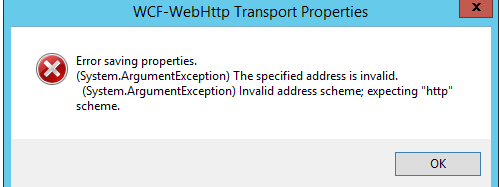
After troubleshooting, we found that security mode in security setting is set to none.
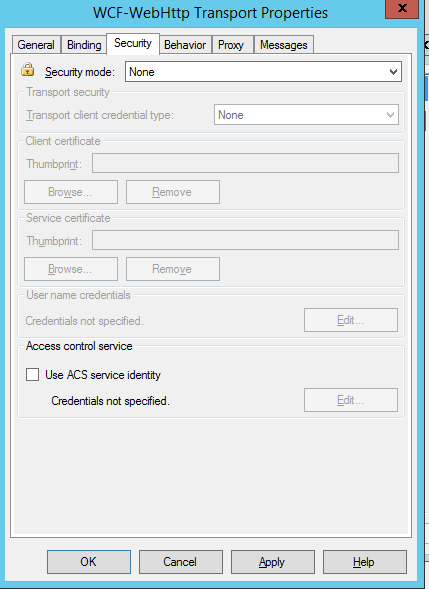
It should be set to transport. Then we can able to configure the https url in the send port with BizTalk wcf-webhttp adapter.
Regards,
Chaitanya
BizTalk Server 2013 Performance Optimization Guide
Hi All,
Please find latest BizTalk Server 2013 Performance Optimization Guide. BizTalk Administrators must have this document for troubleshooting the performance issues.
https://msdn.microsoft.com/library/dn775063(v=bts.10).aspx
Regards,
Chaitanya
BizTalk Server 2010 CU8 is now available
Hi All,
Please check for download instructions of CU8 for- BizTalk Server 2010 in below link.
https://support.microsoft.com/en-us/kb/3081737
Regards,
Chaitanya
PowerShell Script for importing GAC Assemblies info from Servers to Database
Hi All,
Below is one of the procedure in PowerShell to populate GAC information from servers to Database.
First create one database and one table for storing the servers GAC assemblies
CREATE DATABASE testdb
go
USE [testDB]
GO
/****** Object: Table [dbo].[gacassemblies_test] Script Date: 9/9/2015 5:54:45 PM ******/
SET ANSI_NULLS ON
GO
SET QUOTED_IDENTIFIER ON
GO
SET ANSI_PADDING ON
GO
CREATE TABLE [dbo].[gacassemblies_test](
[servername] [varchar](50) NULL,
[AssemblyName] [varchar](max) NULL,
[AssemblyVersion] [varchar](max) NULL,
[AssemblyUpdatetime] [varchar](50) NULL
) ON [PRIMARY] TEXTIMAGE_ON [PRIMARY]
GO
SET ANSI_PADDING OFF
GO
Once you have created Database and table in which you want to store the assemblies from your group of servers. Below is the powershell script for getting GAC assemblies from given location.
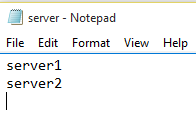
Create a text file that contains server information like below. Don’t make any spaces in the file.
# Power Shell Script
$Output = @();
function truncatetable
{
$conn.open()
$cmd.commandtext = "Truncate table gacassemblies_test"
$cmd.executenonquery()
$conn.close()
}
truncatetable
function Get-AssemblyVersionNumber($assembly)
{
$Assemblydetails = [System.Reflection.Assembly]::Loadfile($assembly)
$AssemblyName = $Assemblydetails.GetName()
$Assemblyversion = $AssemblyName.version
return $AssemblyName
}
$location="C:GAC_Server"
$server=gc "$locationserver.txt" # to give servers information
$path = ‘c$WindowsMicrosoft.NETassemblyGAC_MSIL’ # to get .Net 4 Assemblies
foreach ($sr in $server)
{
$Output=$null
$Output = @();
$Dll= Get-ChildItem "\$sr$path" -Recurse | where {$_.extension -eq ".dll"}
Foreach ($f in $Dll)
{
$assembly=$f.FullName
$gacassembly= Get-AssemblyVersionNumber $assembly
$Output += $gacassembly
}
#$Output | Export-csv $OutputFilePath -NoTypeInformation
$conn = New-Object System.Data.SqlClient.SqlConnection
$conn.ConnectionString = "Data Source=localhost;Initial Catalog=testdb;Integrated Security=SSPI;"
$cmd = New-Object System.Data.SqlClient.SqlCommand
$cmd.connection = $conn
Foreach ($outputrecord in $Output)
{
$conn.open()
$cmd.commandtext = "INSERT INTO gacassemblies_test (servername,AssemblyName,AssemblyVersion) VALUES(‘{0}’,'{1}’,'{2}’)" -f $sr,$outputrecord.Name,$outputrecord.Version
$cmd.executenonquery()
$conn.close()
}
}
Copy PowerShell script into notepad and save it with ps1 extension. And also servers information in server.txt file.

Run the PowerShell script using PowerShell ISE or PowerShell command prompt.
You will get all the assemblies from servers to database.
Regards,
Chaitanya
Virtualization Basics
Cloud computing and virtualization are not the same. Virtualization is component in cloud.
Virtualization: we are separating the operating system from hard ware
Cloud computing: we are separating applications from hard ware
In olden days, when we are installing the OS , it will bind to the physical hardware.
Means device drivers s/w is linked to hard ware. It’s not possible to take the hard disk(contains the OS and put it into the other system
In virtualization, it will provide the layer on top of Hard ware, so we can install OS instance on the layer
This is called as instance of operating system
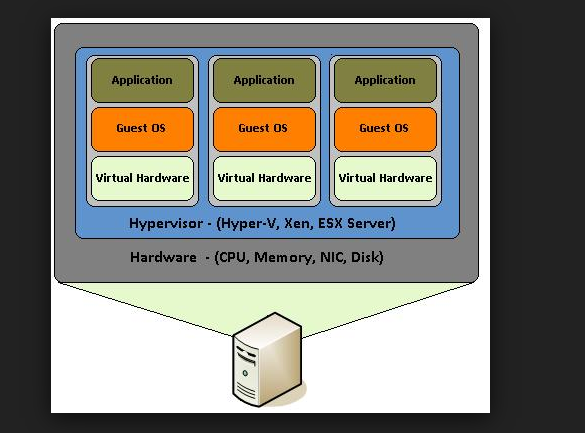
The layer is called hypervisor
There r 2 types of hypervisors
1.Type 1 Hypervisors
You have a blank computer, and you installed hypervisor and you can install OS instances on to that Hypervisor
These are real enterprise servers and it is like below.
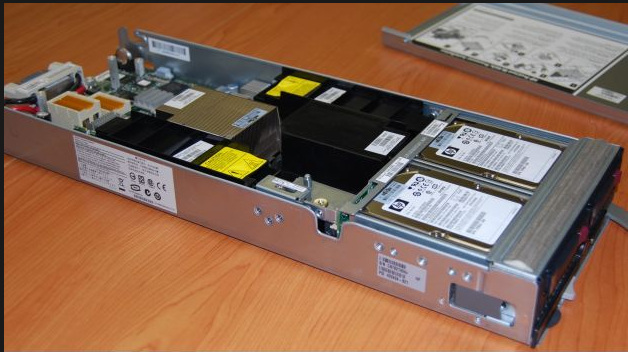
You can put this physical server like this into the rack.
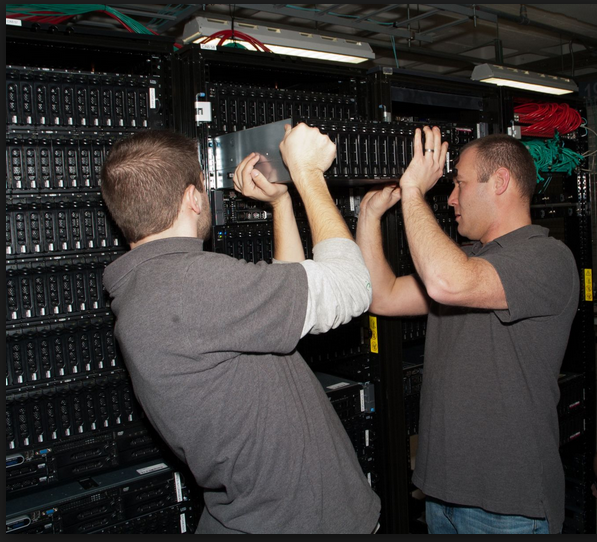
One rack may consists of many physical servers.
When you installed the hypervisor s/w.. By putting CD, you have only seen in the screen like IP address, storage info etc.
You can connect this physical server to network and get the IP address
How can access this hypervisor s/w , this can be accessed by using the management console that is installed on the other computer with the IP address.
Using this management s/w you can install the OS on to the hypervisor.
You can install the windows server 2012 OS into this physical server, if this server down you can copy this OS instance from one physical server to other physical server in the same RACK.

Management s/w can do:
1. Automatically OS instance to other physical which is having required amount of resources if the current server does not meet that much requests.
It will turn on the physical server and move the OS instances to that
2. It will do fault tolerance
If your physical server is down, it will automatically moves the OS instances to other server without no down time.
3. over allocation:
We can allocate the more than the amount of RAM to the OS instances than that exists In physical server
Ex: your physical server have 16 GB of RAM, but you can allocate the 32GB for 3 instances.
How:
We can allocate 12 GB for 1 ,12 GB for 2 ,8 GB.
What Hypervisor will do is if first server is needed huge resources during morning time, it will allocate 12 GB of RAM and other 2GB ,for 2 and 2 GB for 3rd.
After the load is over, it will take that RAM and give it to the other.
Lot of type 1 Hypervisors are there.
1. Citrix
2. VM ware
3. Microsoft Hyper V
These Hypervisors are free, but the management s/w is chargeable.
2.Type 2 Hypervisors
We have OS, then on to that OS, you can install hypervisor like virtual box, virtual pc,VM ware and new instances can be installed in to this hyper visors.
You don’t need the management software in this case. You can open the OS instance like an Window and you can play with it.
Products:
1. Virtual Box from oracle
2. Virtual PC from MS
These are free, if you want to use advances features you need pay for that
If your 2 virtual instances are allocated with the 4GB and 2 GB RAM, if you have 8GB RAM system, they will take the total 8GB and your host computer run on 2GB and may cause system crash.
It will be used for small organizations
Converting to Virtualizations:
Now converting the existing normal OS to virtual instances are easy.
You will have the conversion tools that will be there in the CD’s and you can boot this CD into this OS for which you want to convert them to Virtual instances virtual hard drive . It will take the instance . You can simply use this CD for creating this instance.
Different products have different virtual hard drive formats
Below are the types of Virtualization
Software
· Operating system-level virtualization, hosting of multiple virtualized environments within a single OS instance.
· Application virtualization and workspace virtualization, the hosting of individual applications in an environment separated from the underlying OS. Application virtualization is closely associated with the concept of portable applications.
· Service virtualization, emulating the behavior of dependent (e.g., third-party, evolving, or not implemented) system components that are needed to exercise an application under test (AUT) for development or testing purposes. Rather than virtualizing entire components, it virtualizes only specific slices of dependent behavior critical to the execution of development and testing tasks.
Memory
· Memory virtualization, aggregating random-access memory (RAM) resources from networked systems into a single memory pool
· Virtual memory, giving an application program the impression that it has contiguous working memory, isolating it from the underlying physical memory implementation
Storage
· Storage virtualization, the process of completely abstracting logical storage from physical storage
· Distributed file system, any file system that allows access to files from multiple hosts sharing via a computer network
· Virtual file system, an abstraction layer on top of a more concrete file system, allowing client applications to access different types of concrete file systems in a uniform way
· Storage hypervisor[further explanation needed]
· Virtual disk drive, a computer program the emulates a disk drive such as a hard disk drive or optical disk drive (see comparison of disc image software)
Data
· Data virtualization, the presentation of data as an abstract layer, independent of underlying database systems, structures and storage.
· Database virtualization, the decoupling of the database layer, which lies between the storage and application layers within the application stack over all.
Network
· Network virtualization, creation of a virtualized network addressing space within or across network subnets
· Virtual private network (VPN), a network protocol that replaces the actual wire or other physical media in a network with an abstract layer, allowing a network to be created over the Internet
Regards,
Chaitanya
How to Raise Custom Event ID in Event Viewer using Sql Server
Hi All,
We need the event ids to be generated to event viewer for troubleshooting purpose. SCOM agent recognizes the event id in event viewer and raise the alert. It generally happens in distributed systems.
We can accomplish this task in Sql server using 2 ways.
1. Raise error with log
EX: RAISERROR (‘Test Severity 16’, 16, 1) WITH LOG
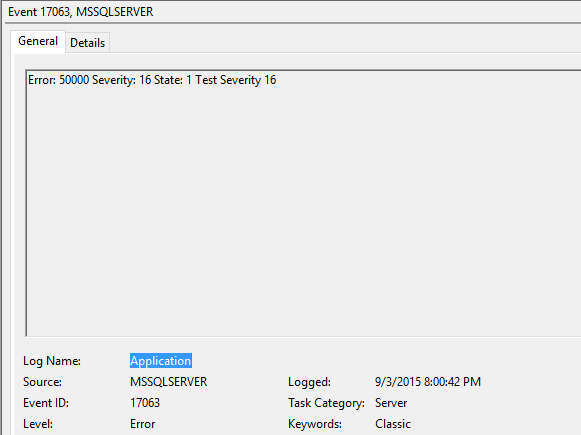
2. xp_logevent event method
Ex : EXEC master.dbo.xp_logevent 60000, ‘Test message’, informational

Issue with above methods are they only raise the error numbers in the event viewer and they can’t do custom event ID in event viewer.
Whatever the event ids that you were seen in above screen shots are related to generic Sql server events.
In order to raise the custom events , as of now use the power shell to raise. Below is the PowerShell snippet for that.
write-eventlog System -source Server -eventid 12345 -message "I am a custom event log message"
Regards,
Chaitanya
Case Statement on Dynamically Generated Pivot Columns
Hi All,
I got into a situation where I have to apply case statement on Dynamically generated columns. Below is my requirement and how I how I achieved that.
I have created below result set with pivoting. Actually Server1,server2,server3 … are Rows and I am making them as columns. I am generating the servers information as columns dynamically
| AssemblyName | Server 1 | Server 2 | Server 3 |
| Assembly1 | NOT EXIST | NULL | NOT EXIST |
| Assembly2 | NOT EXIST | NULL | NOT EXIST |
| Assembly3 | NOT EXIST | NULL | NOT EXIST |
I want the result like this.
| AssemblyName | Server 1 | Server 2 | Server 3 |
| Assembly1 | NOT EXIST | EXIST | NOT EXIST |
| Assembly2 | NOT EXIST | EXIST | NOT EXIST |
| Assembly3 | NOT EXIST | EXIST | NOT EXIST |
Below is the solution for this.
–Below is the Dynamic SQL Pivot Script.
DECLARE @servers nvarchar(max)
SELECT @servers =
STUFF(
(
select distinct ‘,[‘ + S.ServerName + ‘]’
from tempassemblies S
for xml path(”)
),
1,1,”)
DECLARE @SQL nvarchar(max)
SELECT @SQL = N’
select
* into Temp_Assemblies
from (
SELECT p.AssemblyName, p.ServerName,p.CurrentStatus
FROM dbo.tempassemblies p
) Data
PIVOT (
max(CurrentStatus )
FOR [ServerName]
IN (
‘ + @servers + ‘
)
) PivotTable
‘
exec sp_executesql @SQL
–update NULL values to ‘Custom Values’
DECLARE @dynamicsql nvarchar(MAX)
SELECT @dynamicsql= COALESCE(@dynamicsql + ‘ ‘, ”) +
‘UPDATE Temp_Assemblies SET ‘ + quotename(name)+ ‘ = ”EXIST” WHERE ‘ + quotename(name) + ‘ IS NULL ‘
FROM sys.columns WHERE object_id = object_id(‘Temp_Assemblies’)
EXECUTE (@dynamicsql)
Regards,
Chaitanya


 SQL BLOGGING