Case Statement on Dynamically Generated Pivot Columns
Hi All,
I got into a situation where I have to apply case statement on Dynamically generated columns. Below is my requirement and how I how I achieved that.
I have created below result set with pivoting. Actually Server1,server2,server3 … are Rows and I am making them as columns. I am generating the servers information as columns dynamically
| AssemblyName | Server 1 | Server 2 | Server 3 |
| Assembly1 | NOT EXIST | NULL | NOT EXIST |
| Assembly2 | NOT EXIST | NULL | NOT EXIST |
| Assembly3 | NOT EXIST | NULL | NOT EXIST |
I want the result like this.
| AssemblyName | Server 1 | Server 2 | Server 3 |
| Assembly1 | NOT EXIST | EXIST | NOT EXIST |
| Assembly2 | NOT EXIST | EXIST | NOT EXIST |
| Assembly3 | NOT EXIST | EXIST | NOT EXIST |
Below is the solution for this.
–Below is the Dynamic SQL Pivot Script.
DECLARE @servers nvarchar(max)
SELECT @servers =
STUFF(
(
select distinct ‘,[‘ + S.ServerName + ‘]’
from tempassemblies S
for xml path(”)
),
1,1,”)
DECLARE @SQL nvarchar(max)
SELECT @SQL = N’
select
* into Temp_Assemblies
from (
SELECT p.AssemblyName, p.ServerName,p.CurrentStatus
FROM dbo.tempassemblies p
) Data
PIVOT (
max(CurrentStatus )
FOR [ServerName]
IN (
‘ + @servers + ‘
)
) PivotTable
‘
exec sp_executesql @SQL
–update NULL values to ‘Custom Values’
DECLARE @dynamicsql nvarchar(MAX)
SELECT @dynamicsql= COALESCE(@dynamicsql + ‘ ‘, ”) +
‘UPDATE Temp_Assemblies SET ‘ + quotename(name)+ ‘ = ”EXIST” WHERE ‘ + quotename(name) + ‘ IS NULL ‘
FROM sys.columns WHERE object_id = object_id(‘Temp_Assemblies’)
EXECUTE (@dynamicsql)
Regards,
Chaitanya
Don’t want the dialogue box when you are opening the sql server?
Hi All,
If you are opening the sql server management studio, and SSMS will ask the dialogue box to give the server name.
Every time, you are opening sql server, you are getting the dialogue box ,
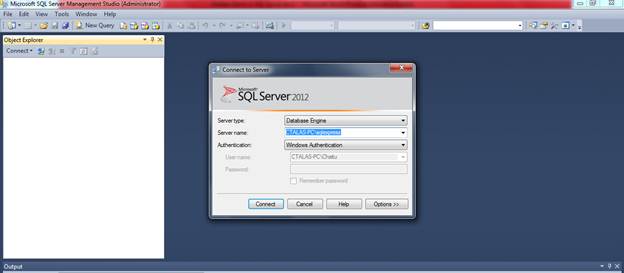
If you don’t want this dialogue box, then go to properties of management studio tab
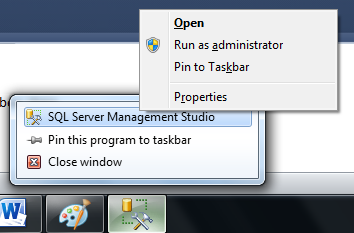
Then in the target, at the end of line add space –E like below
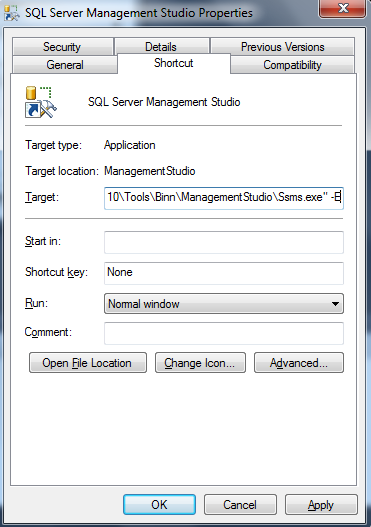
after this modification done, Click on the Sql server management studio ICON
Please check and let us know if you have any concerns on this.
Thanks for viewing this.
Regards,
Chaitanya
Visit site: http://www.sqlblogging.com
Send an Email: sqlblogging
enable Line numbers for the query editor in your sql server
To enable Line numbers for the query editor in your sql server
Go to tools windows, select options, in that select Transact- SQL window, select general, you have line numbers option which was un – Checked.

Check the option.

Click OK. Now open the new query window using CTRL+N
You will get the lines for each and every statement in the query editior

Please check and let us know if you have any concerns on this.
Thanks for viewing this.
Regards,
Chaitanya
Visit site: http://www.sqlblogging.com
Send an Email: sqlblogging@outlook.com
how to hide system objects in object explorer in sql server
Hi folks,
When I am searching in MSDN , I found this and posting this in the blog.
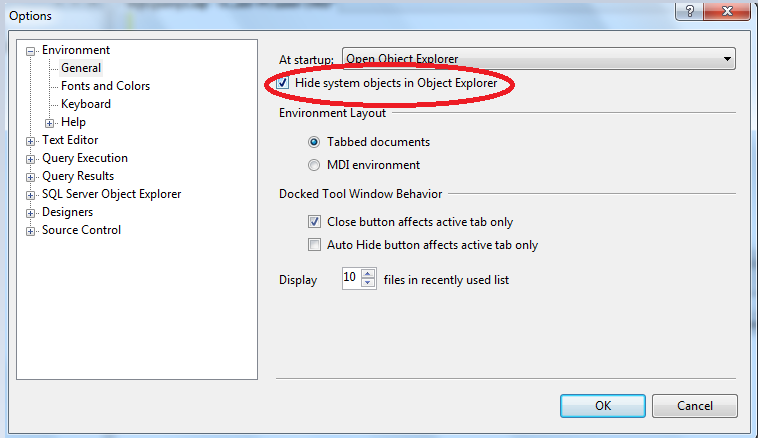
To hide system objects in Object Explorer
On the Tools menu, click Options.

On the Environment/General page, select Hide system objects in Object Explorer, and then click OK.
In the SQL Server Management Studio dialog box, click OK to acknowledge that SQL Server Management Studio must be restarted for this change to take affect.
Close and reopen SQL Server Management Studio.
Thanks for viewing
Regards,
Chaitanya
Visit site: https://mssqlbuzz.wordpress.com
Send an Email : mssqlbuzz
SQL Server Management Studio Shortcuts
Hi Folks,
Below are the SQL Server Management Studio Shortcuts
Basic Editing Shortcuts
File Shortcuts
View Shortcuts
Query Shortcuts
Window Shortcuts
|
Advanced Editing Shortcuts
Bookmarks Shortcuts
Function Keys
Intellisense Shortcuts
|
Please check and let us know if you have any concerns
Number of ways to view the tables and views in the sql server
sp_tables is the procedure used for getting the tables and views information in sql server current data base
sp_tables [ [ @table_name = ] ‘name’ ]
[ , [ @table_owner = ] ‘owner’ ]
[ , [ @table_qualifier = ] ‘qualifier’ ]
[ , [ @table_type = ] “type” ]
[ , [@fUsePattern = ] ‘fUsePattern’];
@table_qualifier-database name
@table_owner is the schema name
@table_type- it takes only 3 arguments and will give ouput based on that TABLE, SYSTEMTABLE, and VIEW
[@fUsePattern- for pattern matching
Ex:
exec sp_tables @Table_Type = ”’VIEW”’
exec sp_tables @Table_Type = ”’TABLE”’
normally we have the used below queries for retruing the tables information and views information from the database
first and best option is information schema
for tables
SELECT [TABLE_NAME]
FROM INFORMATION_SCHEMA.tables
For views
SELECT [TABLE_NAME]
FROM INFORMATION_SCHEMA.views
Alternatively, the INFORMATION_SCHEMA.TABLES system view can also be used to return user views.
SELECT TABLE_NAME
FROM INFORMATION_SCHEMA.TABLES
WHERE TABLE_TYPE = ‘VIEW’
The INFORMATION_SCHEMA.TABLES system view returns both view and user tables. To return just user views, the TABLE_TYPE needs to be checked for a value of ‘VIEW’.
The third way of getting a list of user views is by querying the different system views, namely, the sys.views, sys.objectsand dbo.sysobjects.
For views:
Select * from sys.views
SELECT [Name] FROM [sys].[objects] WHERE [type] = ‘U’
SELECT [Name] FROM [dbo].[sysobjects] WHERE [xtype] = ‘U’
For tables:
select * from sys.tables
SELECT [Name] FROM [sys].[objects] WHERE [type] = ‘U’
SELECT [Name] FROM [dbo].[sysobjects] WHERE [xtype] = ‘U’
Please check and let us know if you have any concerns on this
thanks for reading
adding the error message to the event viewer through t-sql
We have the extended stored procedure in the sql server master database
go to object exploerer-> databases-> system databases-> programmability->extended stored procedures
Extended stored procedures are created and loaded using DLL’s (which are created in C/C++), and offer more independent functionality than standard procedures (such as access to the Win32 API, services, direct disk/network etc), and because they’re compiled externally as dynamic linking libraries (DLL’s) and these are very faster
sending the error message to the event viewer functionality is supported by one of the extended Procedure xp_logevent
which is used to send the user defined message to the event viewer through the t-sql
syntax:
xp_logevent {error_number, ‘message’} [, ‘severity’]
The error_number parameter is a user-defined error number greater than 50,000. The message parameter is the actual message that will be shown in the event viewer. Lastly, severity is an optional parameter containing one of three character strings that represents how bad the error that occurred was. The three possible values are INFORMATIONAL, WARNING, and ERROR. If you don’t include this parameter, the INFORMATIONAL is used.
Example:
Exec master..xp_logevent 65000, “User defined Error message”, WARNING
or
use master
exec xp_logevent 65000, “User defined Error message”, INFORMATIONAL

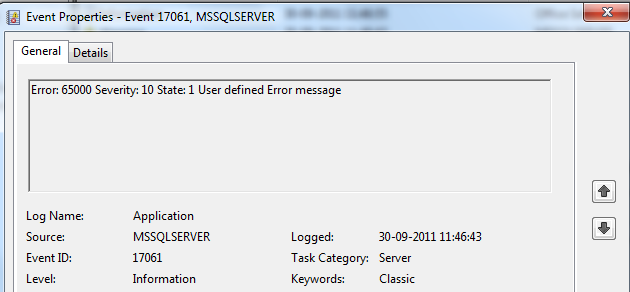
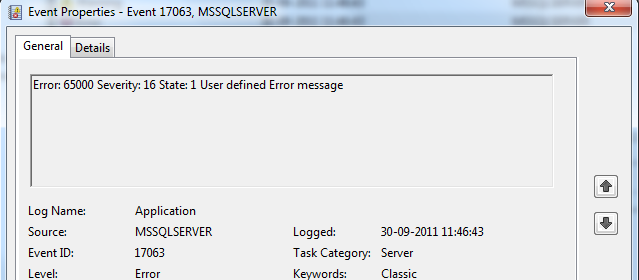
Next, run event viewer (Start -> Programs -> Administrative Tools -> Event Viewer) and click on the application log node. Look at the top couple of lines and find an entry with a source of “MSSQLSERVER”; double-click on it. It should load a property page showing our error message, number, and severity, like this:
you will see the message .

if we double click on these , they are like below

Please let us know if you have any other options for this..
thanks for viewing

 SQL BLOGGING