IIS Web Server Learning Series -Part 2 – IIS web server installation
IIS 7.5 web server installation:
Go to Server manager in Server and it can connect to remote computers
After opening the server manager
Go to roles-> add roles
Check the iis web server windows feature
after that check the sub features what you want
After installation completed, check the futures in the server manager and iis web server and right click on the iis webserver and select add role services
her you got the list of sub features for the iis
under the web server
web server(Installed )
-> Common http features
->static content– non executable code like ads
->default document–when u go to microsoft.com u will go to microsoft.com/default.aspx i.e. called default document
-> Directory browsing: directory structure: most web sites not installed this.. if you don’t need this one… then don’t install it
->Http errors: we can place the custom errors page instead of 401 errors
->http redirection: redirect the url
->Web DAV(distributed authoring and versioning) publishing: used to send the files to web server using the http protocol… it is not recommended.
-> Application development– here executable code is placed
->asp.net– for this u need to have .net framework installed on server, for deploying the .net application
->.net extendibility: write the .net extensions
->asp- for ASP apps, we need to install, else no need
->CGI: use for web server extensibility. it is interface between IIS and programming languages, they used the CGI script. it is having performance issues
->ISAPI Extensions:
->ISAPI filters: ISAPI is faster than CGi and it is MS one
-> server side includes: dynamically inserting html pages to website pages before it sends to client, but asp,asp.net have this functionality default
And it is used when static content is used
Server side includes: is having some performance issues
-> Health and diagnostics– for troubleshooting the web site
->Http logging–it logs the web site activity in text file.. most of sites are using this one only.
->custom logging: it will logs based on programming done.. no need.
->odbc logging: it will log in the DB.
->logging tools: it will manage the web server logs and automate logging tasks
->Request monitor: it monitors websites health and performance. it have the details of http request inside the worker process
we can use the this monitor which http request is process is slow
->tracing: it is used for the diagnostic and trouble shoot the web apps.. with failed request tracing u can troubleshoot events like poor performance, authentication failures.
-> Security– most of them are for authentication
->basic authentication: it is used for internal networks ,not for the public networks, main disadv is the credentials(clear text) transferred over this is very easy to decrypt
if you website is not using the https…it is like getting the dialogue box and asking the credentials
->windows authentication: used for internal websites. for windows domain. don’t use it for users that are accessing the website beyond the firewalls or using the proxy servers
-> digest authentication: works by sending the password in hash format over windows controller domain , it will give more security that basic authentication for users that are accessing the website beyond the firewalls or using the proxy server
->client certificate mapping:: uses client certificates to authenticate users. client certificate is digital id from the trusted source
IIS offers 2 types of mapping: this type offers one to one certificate mapping across multiple web servers
-> IIS client certificate mapping: this one is more performance and IIS offers here one to one and many to one certificate mapping. If your website is not having authentication, no need of installing all the above authentications
-> URL authorizing : preventing the users from accessing the web content by binding the rules to the users, groups, http verbs
-> Request filtering: take all request and filer it based on rules set by administrator and send it to server
-> IP address and domain restrictions: used to set certain IP address only hit or certain IP address will not hit the server.
-> Performance:
->Static content compression: compressing the static web pages, so that CPU have more band width and iis will keep it in cache
->Dynamic content compression: not recommended
->Management tools:
->IIS management console
->IIS Management scripts and tools
->Management service: it should be installed so that other that server can be IIS web connected remotely and managed
-> IIS 6 Management compatibility:
-> IIS mat abase compatibility
->IIS 6 WMI compatibility
->IIS scripting tools
->IIS 6 management console
don’t login into server and manage the iis and manage it remotely
-> FTP server:
for windows server 2008 RTM, iis 7 has the ftp 6.0 version, after that they release ftp7.o version for iis 7.0
-> FTP service
-> FTP extensibility:
> IIS Hostable web core : it is the dll file used by application developers in their application
Installing IIS through script
http://technet.microsoft.com/en-us/library/cc771209.aspx
Regards,
Chaitanya
IIS Web Server Learning Series -Part 1 – Architecture of IIS
Architecture of IIS
Windows is the OS that divides into 2 modes
1. kernel mode: it is fastest and provides the direct access to hardware and Kernel mode has full access to every resource
things running in kernel mode are bypassing most operations as the operating system runs in this mode
Ex: device drivers
a badly written device drivers can crash the entire operating system and it causes the blue screen issue
2. User mode: where the actual s/w executes and uses the actual memory and has restricted access to resources.
it is the most protected area. if anything happened in this mode then OS will interpret and correct it but in kernel mode it is not possible
IIS is the tool which performs the operation in kernel mode and user mode:
IIS have the http listener running in kernel mode and it is listening all the requests coming from Web
IIS have the multiple websites and http listener listens the web requests and dispatches the request to the user mode process called worker process
these worker processes are seen in task manager and these took the requests and send according to the request type: if it is asp.net request then it executes the asp.net script
in addition to dispatching the request to the worker process, it will check the any requests coming from web is not having the requested pages in the server
then it discards the requests immediately.
if the worker process processing the request is of type badly written code one, then that worker process is killed and it will not affect the other worker process
Windows kill that worker process and claim the memory
IIS is having modular architecture:
Going to site in IIS gives the site information in the form of modules Like Asp.net, IIS, Management
For this IIS, you need least windows 2008 and With IIS 7.0, you will get the IIS 6.0 also
Previous of versions of IIS is using the command line for managing the IIS
IIS 7.5 uses the windows PowerShell and MS used VB script form previous versions and they deprecated and now they migrated to PowerShell scripts
Regards,
Chaitanya
Capturing Client Certificate Details using IIS Advanced Logging Module
Hi All,
We have faced this type of issues when we do partner connectivity tests. This post is one stop solution provider for all your client connectivity issues regarding logging.
We can install the IIS Advanced Logging Module from the below location
http://www.iis.net/downloads/microsoft/advanced-logging
After installing the module, you can view this module in the IIS server level and Site level and Virtual Directory Level.

ENABLING AND DISABLING SERVER LOGGING
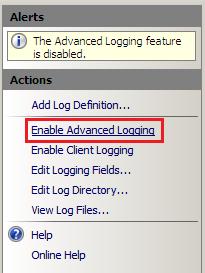
By default, IIS Advanced Logging is disabled after you install it. To enable the feature so that it can handle log messages from other web server components, open it at the server level in IIS Manager, and then in the Actions pane, click Enable Advanced Logging.
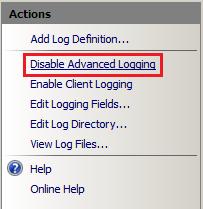
To disable the feature at a later time, open it at the server level in IIS Manager, and then in the Actions pane, click Disable Advanced Logging.
ENABLING AND DISABLING CLIENT LOGGING
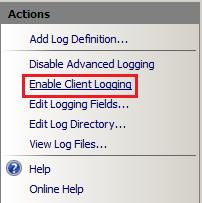
By default, client logging in the Advanced Logging feature is disabled after you install it. To enable client logging in the Advanced Logging feature so that it can handle client log messages that are received as XML data via HTTP POST messages, open the Advanced Logging feature at the server level in IIS Manager, and then in the Actions pane, click Enable Client Logging.
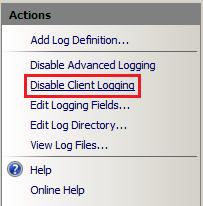
To disable client logging at a later time, open the Advanced Logging feature at the server level in IIS Manager, and then in the Actions pane, click Disable Client Logging.
LOG DEFINITIONS
The Advanced Logging feature displays all of the log definitions that are available on the server on the server Home page in IIS Manager. The following figure displays the log definition %COMPUTERNAME%-Server, which is installed by default and captures some fields of interest from a content delivery perspective.
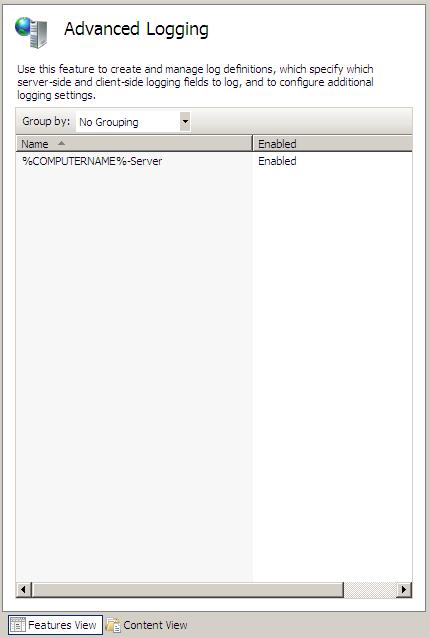
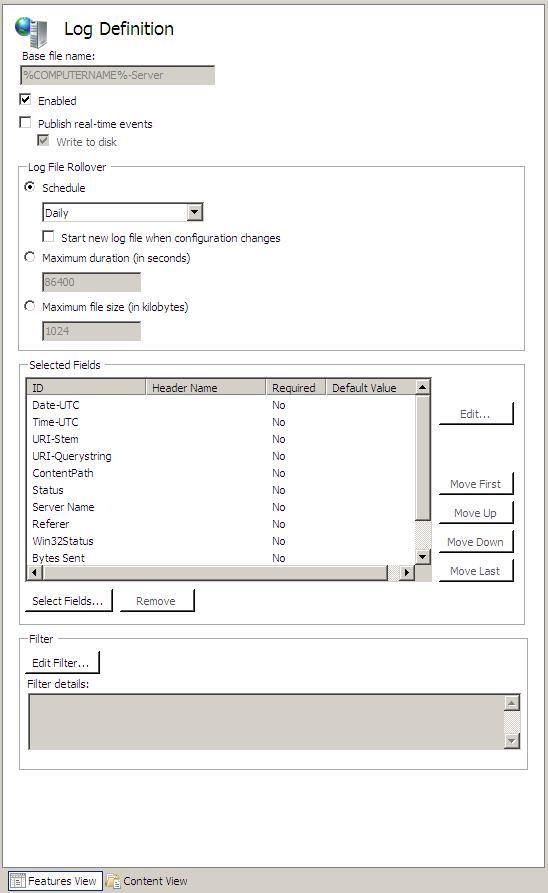
To view the the fields that are included in this log definition, click the log definition name, and then in the Actions pane, click Edit Log Definition. This opens the Log Definition feature page for the selected log definition, as shown in the following figure:
GLOBAL LOGGING FIELDS LIST
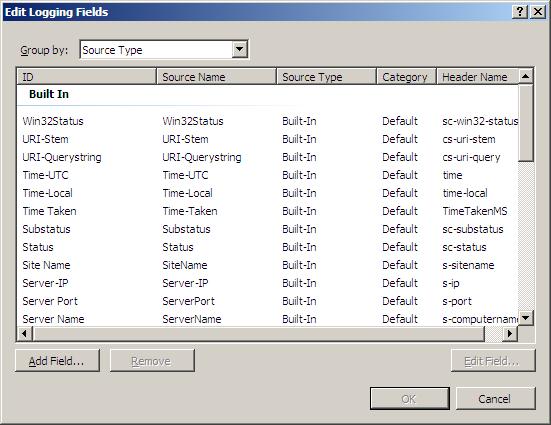
The global logging fields list contains all of the logging fields that can be added to log definitions. To view the global logging fields list, open the Advanced Logging feature at the server, website, directory, or application level in IIS Manager, and then in theActions pane, click Edit Logging Fields.
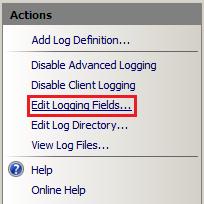
This action opens the Edit Logging Fields dialog box, which displays the logging fields that are included in the default installation of IIS Advanced Logging.
Custom Logging Fields
This section describes how to add a custom logging field to the global logging fields list. In the following examples, we’ll use a custom HTTP response header author as the custom logging field. This custom response header returns the webpage author’s name in the response to clients.
To add a custom logging field to the global logging fields list, do the following:
1. In IIS Manager, open the Advanced Logging feature at the server, website, virtual directory, or application level.
2. In the Actions pane, click Edit Logging Fields to open the Edit Logging Fields dialog box. The dialog box displays the logging fields that are available by default.
3. In the Edit Logging Fields dialog box, click the Add Field button.

4. In the Add Logging Field dialog box, specify settings and values for the custom logging field.
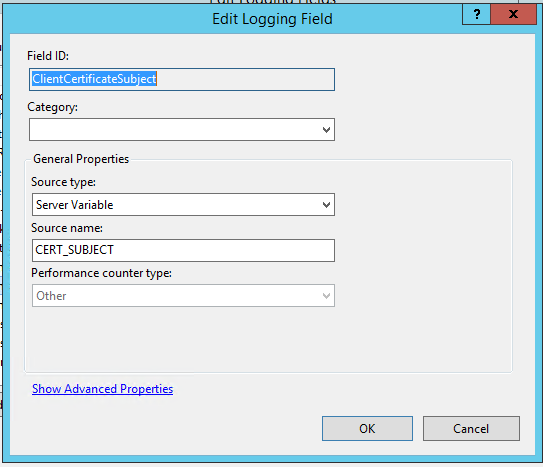
- Field ID. Type a friendly name (for example, ClientCertificateSubject) that will be included in the log definition and displayed in the global logging fields list.
· Source type. Select Server Variable
- Source Name. Enter CERT_SUBJECT as the HTTP response that you want to log.
Once the custom fields are created, then we need to create Log directory, it can be created at server level/website level/VD level
Procedure for Adding the Log Definition:
1. In IIS Manager, open the Advanced Logging feature at the server, website, virtual directory, or application level.
2. In the Actions pane, click Add Log Definition to open the Log Definition page.
3. In the Log Definition page, specify settings and values for the new log definition:
1. Base file name. File names of the logs files that are generated use a Base file name that you specify and a timestamp, in the form Basefilename_timestamp.log. You can use environmental variables as the base file name and the environment variables will be expanded by the Advanced Logging feature.
2. Enabled. The new log definition will be enabled when this check box is selected. You can disable it by clearing the check box. In this example, we leave it enabled.
4. Specify the order that the logging fields are written to the log file by selecting a logging field name in the list and then clicking one of the Move buttons to update its position in the list.

Storing Log Files
When you access a webpage hosted by the server, you should see Author being logged, along with the other logging fields that you selected in the previous section, in the log files that are created. By default, log files for the server and all websites are stored in %SystemDrive%inetpublogsAdvancedLogs.
You can change this “global” log directory for the server and for websites and you can also specify a unique log directory for each website on your server.
This section contains the following procedures:
• To specify a global log directory for the server and websites
• To specify a log directory for a website
To specify a global log directory for the server and websites
1. In IIS Manager, open the Advanced Logging feature at the server level.
2. In the Actions pane, click Edit Log Directory.

3. In the Edit Log Directory dialog box, update the log directory path information.

• Server log directory. Specifies the log file directory for the server.
• Default site log directory. Specifies the default log file directory for all websites on the server. To change the log file directory for a specific website, see the following procedure.
To specify a log directory for a website
1. In IIS Manager, open the Advanced Logging feature at the website level for which you want to change the log file directory.
2. In the Actions pane, click Edit Log Directory.

3. In the Edit Log Directory dialog box, update the log directory path information for the website.
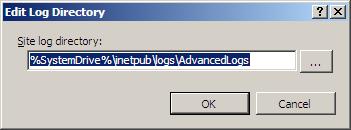
• Site log directory. Specifies the log file directory for the website.
Regards,
Visit site: http://www.sqlblogging.com
Send an Email: sqlblogging@outlook.com


 SQL BLOGGING